

For the past few weeks, I have been trying to determine whether an Android tablet can completely replace a computer for everyday office use. The subject is vast, but I manage fairly well with a keyboard integrated into the protective case (the “BookCover Keyboard Slim” from Samsung, sounds fancy!), and a Bluetooth mouse. In reality, the experience is quite convincing: by finding the right apps – and being willing to pay for some of them – and with a little tinkering, a good Android tablet now allows one to be completely mobile, with a device that weighs less than a Macbook Air and offers tremendous battery life. The only constraint is having access to a decent Internet connection. But other than that, it’s all good; the proof? This post is entirely written on a tablet!
The tablet is also a very convenient multimedia tool, and I have gradually stopped using my faithful Kobo e-reader to read only on the tablet: by adjusting the brightness and visual comfort settings, the experience remains enjoyable even when reading for two hours straight. And the tablet has a significant advantage: its format makes reading magazines, comics, and other manga feasible and even enjoyable. While most reading can be done through subscription-based apps (such as Cafeyn1, which offers a wide range of magazines for a reasonable price, and whose tablet app is very well made) or by purchasing eBooks (comics and manga are easily found on online stores), the work still needs to be presented in a format designed for tablet reading.
“A false problem”, you say? For a normal person, that’s true! But for an old gamer with a tendency towards misanthropy, the subject is more complex: how to (re)read all those old magazines about video games and computers that you find scans of on the internet, or that you scanned yourself due to lack of space and a passion for archiving? What’s that, you say it’s exceptional, unusual, and even… bizarre cases? Just a reminder, you’re on the website of a self-professed geek. And furthermore, if you’re here, it’s because you’re looking for a solution to this thorny problem. But don’t panic: in his great benevolence, Bob will explain to you how to create and read .cbz and .cbr files on an Android tablet!
Table of Contents (because it can get a bit long otherwise…)
- What is a .cbz (or .cbr) file and how to read it on an Android tablet?
- How to create a .cbz (or .cbr) file on an Android tablet?
- What about the ComicInfo.xml file ?
- What is the meaning of all this?
- Bonus: Manual of ComicInfo.xml tags
What is a .cbz (or .cbr) file and how to read it on an Android tablet?
To keep it simple, .cbz and .cbr files are compressed folders (ZIP format for .cbz and RAR format for .cbr) containing images: the reading app simply displays the images in the order defined by their filenames (standard alphanumeric order), and the number of pages displayed corresponds to the number of images in the folder. The first image is typically used as the cover to display the book in your digital library. As a little info, the acronyms stand for Comic Book Zip and Comic Book Rar.
To read these files on a tablet, you’ll need a dedicated reading app. There are several options available, but personally, I use Moon+ Reader2. It’s a well-known Android app that reads manga, magazines, comics, and even “classic” books (without small images) across almost all formats and in numerous languages. The free version does the job and lets you see if you like the app, but the pro version is quite affordable and offers significant comfort features, such as dark mode and no ads. Additionally, there are specialized apps for comics and manga—it’s up to you to choose the one that suits your preferences!
Basically, regardless of the app, all you need to do is save the .cbz or .cbr file somewhere on your tablet and import it into the application’s library. The file becomes readable, with options that depend on the specific app!
How to create a .cbz (or .cbr) file on an Android tablet ?
First of all, creating a .cbz or .cbr file is necessary, but you won’t find many for sale nowadays. The reason is simple: these formats can’t really be protected, and anyone can copy, open, or extract the images from them. This might be great from the perspective of open-source and free software advocates, but it’s less appealing to rights holders! This format, which is considered a pioneer in the history of digital books—often credited to David Ayton and his app CDisplay3—no longer appears on online stores, which now prefer formats like ePub or others embedded with DRM that can be cracked in seconds with the right software… Nothing new under the sun! So today, downloadable .cbr and .cbz files are either free or “pirate” files!
I have no intention of encouraging piracy today—we’re talking preservation of heritage, not increasing it. We’re going to save an old video game magazine so we can read it by the pool at the campsite or at the luxury hotel (depending on my banker’s mood)! To do this, all you really need is one thing: a good file explorer that can compress a folder and rename it. On Android, I highly recommend ‘File Manager Plus’4: it does the job perfectly, and it’s free (the paid version, at a reasonable price, adds more comfort, but the basic features are enough!). That, and a digitized magazine. I’ve scanned quite a few myself, but nowadays I’m feeling lazy, and I’ll once again use the archives from the site Abandonware Magazines5 .
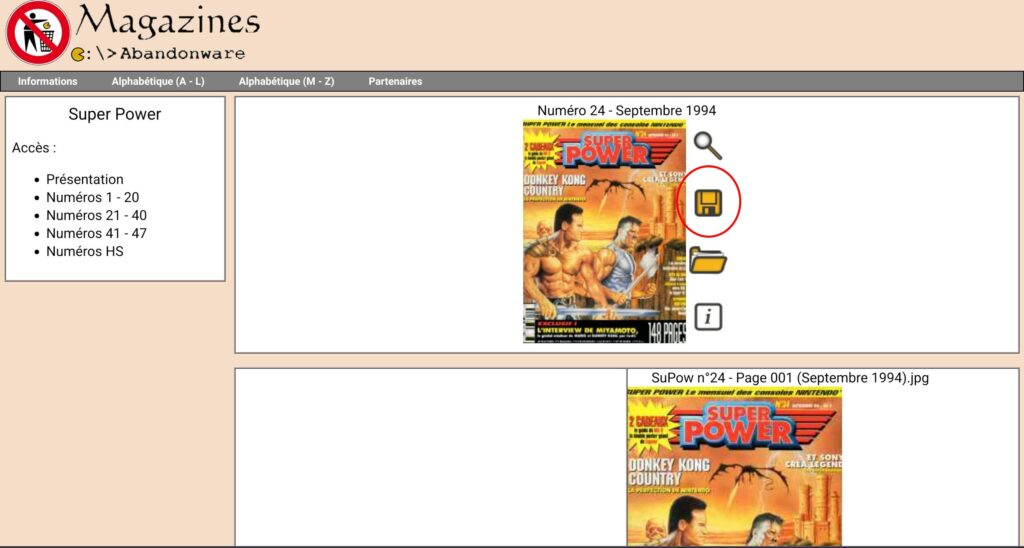
Let’s start by searching for and downloading an old magazine that smells of childhood… The September 1994 issue of Super Power, with the review of Legend on Super Nintendo, will be perfect! Click on the icon circled in red in the photo (I was about to write “disk” since that makes sense for a save icon, but I recently realized none of my young colleagues understand what I mean by “disk” TT): a page will offer you to download the magazine as… a ZIP archive! Perfect timing, right?
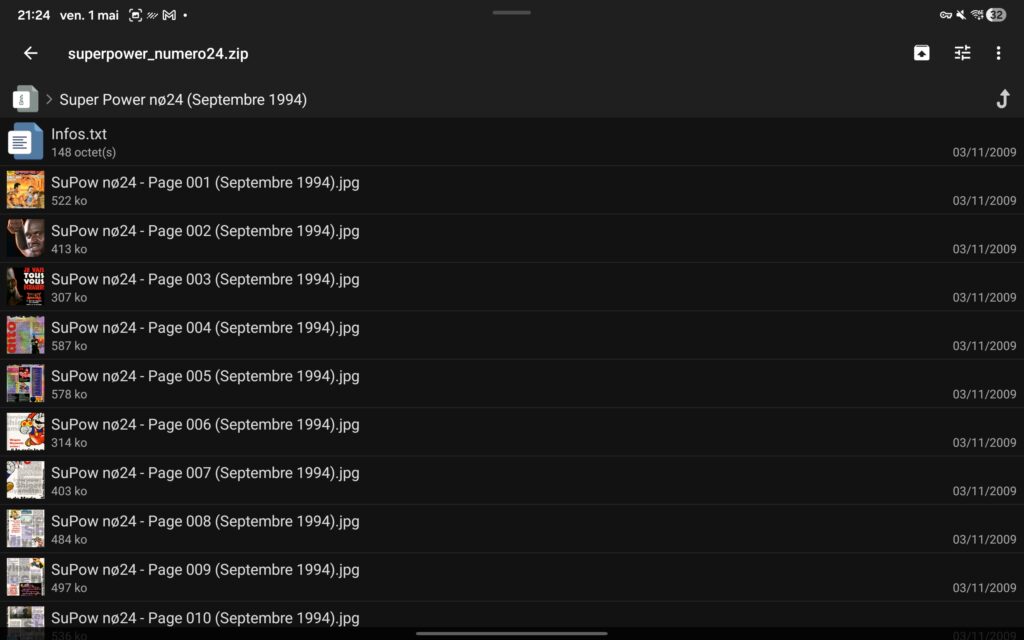
If you’re a bit curious, you can open the archive and see that it contains a folder with a sequence of ordered images—these are the scanned pages of the magazine. If you scan a magazine yourself, which is easier than it seems, I recommend using the “Photo Editor” by Iudesk6 on your Android tablet. The free version does a great job, even if the tool is starting to show its age!
In short, once you have a folder containing your scanned magazine pages in order (like 001.jpg, 002.jpg, etc.), you just need to compress it into a ZIP or RAR archive. A note on image format: I recommend sticking with JPEG—it’s simple and offers a good balance between size and quality for colorful pages mixing illustrations and text. Keep the basic settings for color indexing and stay at 300 dpi resolution. Unless you know what you’re doing and are familiar with your reading app’s capabilities and limitations, follow the guidelines from Abandonware-Magazine below (click to expand, double-click inside the frame to reveal the scrollbar):
Display the Abandonware Magazines charter.
Once you’ve compressed your folder into a ZIP (or RAR), all you need to do is change the file extension to .cbz (for ZIP) or .cbr (for RAR). In my case, Moon+ Reader+ is set as the default app for reading .cbz files, so it immediately recognizes the file! You just import your file into the reading app, and you’re all set! It’s actually very simple—just make sure you have a proper file explorer, like the one I recommended earlier!
What about the ComicInfo.xml file ?
If you’ve done some research on digital reading of comics, manga, or magazines, you’ve probably read that adding metadata—such as series, issue number, publication date, scriptwriter, artist, etc.—is possible. For CBR and CBZ files, a simple XML file (ComicInfo.xml) placed at the root of the archive is usually used. However, this format isn’t an official standard. It was used by ComicRack, the pioneering application in the field that’s now disappeared. Without standardization, there’s no official documentation and no guarantee that every reader will handle this file properly. I tried adding a ComicInfo.xml to my CBZ files, but none of the reading apps I tested seem to support it, and even Calibre— the go-to digital library software on computers—ignores it too. The only workaround I found is to convert the files into ePub to transfer metadata from one app to another, but this is a bit complicated. It requires keeping both a ZIP and an ePub file (in my case), so I can still access JPEG images immediately. Not very satisfying. I personally think the ComicInfo.xml format is more or less dead, and embedding metadata within a .cbz or .cbr isn’t a priority anymore. That said, since I’ve looked into it, I’ll leave a brief summary at the end of this article explaining the theoretical workings of ComicInfo.xml. For the tinkerers out there!
What is the meaning of all this?
42 !
Bob Dupneu
- https://www.cafeyn.co/
- https://www.moondownload.com/
- https://web.archive.org/web/20071011003226/http://www.geocities.com/davidayton/CDisplay.html
- https://play.google.com/store/apps/details?id=com.niki.filemanagerplus
- https://www.abandonware-magazines.org/index.php
- https://www.iudesk.com/
Bonus: Manual of ComicInfo.xml tags
ComicInfo.xml — Tag Manual
ComicInfo.xml is not a single, fixed official standard.
It historically comes from ComicRack and has been adopted by many applications such as ComicTagger,
Kavita, Komga, YACReader, Panels, and others. Some readers accept additional fields or ignore
certain tags.
1. General file structure
The ComicInfo.xml file is usually placed at the root of the .cbz archive.
The basic structure is as follows:
<ComicInfo>
  ...
</ComicInfo>
All fields are optional in principle, but some are much more widely used than others,
especially Series, Number, Title, Writer,
Publisher, Year, and PageCount.
2. Main comic information
| Information | XML tag | Type / format | Notes |
|---|---|---|---|
| Issue or volume title | <Title> |
Text | Specific title of the issue or book. |
| Series | <Series> |
Text | Main series name, for example Batman. |
| Number | <Number> |
Text | Often stored as a string to allow values such as 1, 001, 1A, ½, Annual 1, etc. |
| Total issue count | <Count> |
Integer | Allows display such as 3 of 12. Usage varies depending on the software. |
| Volume | <Volume> |
Integer | May refer to the editorial volume or a series relaunch. |
| Alternate series | <AlternateSeries> |
Text | Another grouping or alternate numbering system. |
| Alternate number | <AlternateNumber> |
Text | Number within the alternate series. |
| Alternate total count | <AlternateCount> |
Integer | Total number within the alternate series. |
3. Summary, notes, and review
| Information | XML tag | Type / format | Notes |
|---|---|---|---|
| Summary | <Summary> |
Long text | Synopsis or story description. |
| Notes | <Notes> |
Long text | Free-form notes, often added by tagging software. |
| Review | <Review> |
Long text | Personal opinion or review. This field is less commonly used by some readers. |
| Community rating | <CommunityRating> |
Decimal number | Usually a rating from 0 to 5, for example 4.5. |
4. Publication date
| Information | XML tag | Type / format | Notes |
|---|---|---|---|
| Year | <Year> |
Integer | Example: 1986. |
| Month | <Month> |
Integer from 1 to 12 | May be omitted if unknown. |
| Day | <Day> |
Integer from 1 to 31 | May be omitted if unknown. |
<Year>1986</Year>
<Month>2</Month>
<Day>25</Day>
5. Creative team
The following fields usually contain a comma-separated list of names.
| Information | XML tag | Notes |
|---|---|---|
| Writer | <Writer> |
Example: Alan Moore. |
| Penciller | <Penciller> |
Artist responsible for the pencil artwork. |
| Inker | <Inker> |
May be the same person as the penciller. |
| Colorist | <Colorist> |
Artist responsible for the colors. |
| Letterer | <Letterer> |
Person responsible for lettering. |
| Cover artist | <CoverArtist> |
May contain multiple names. |
| Editor | <Editor> |
Editorial manager. |
| Translator | <Translator> |
Especially useful for translated editions. |
6. Edition and publication
| Information | XML tag | Type / format | Notes |
|---|---|---|---|
| Publisher | <Publisher> |
Text | Example: DC Comics, Marvel, Delcourt. |
| Imprint / label | <Imprint> |
Text | Example: Vertigo, Black Label, Epic Comics. |
| Format | <Format> |
Free text | Example: Annual, One-Shot, Trade Paperback, Hardcover, Digital. |
| GTIN / barcode | <GTIN> |
Text or number | May contain an EAN, ISBN, UPC, or another global identifier. |
| Website | <Web> |
URL or text | Link to an online entry: publisher, ComicVine, Grand Comics Database, etc. |
7. Classification, genres, and keywords
| Information | XML tag | Type / format | Notes |
|---|---|---|---|
| Genre | <Genre> |
Text or list | Example: Superhero, Science Fiction, Fantasy. |
| Tags / keywords | <Tags> |
Text or list | Free-form keywords, often separated by commas. |
| Characters | <Characters> |
Text list | Example: Batman, Joker, Commissioner Gordon. |
| Teams | <Teams> |
Text list | Example: Justice League, Avengers. |
| Locations | <Locations> |
Text list | Example: Gotham City, Arkham Asylum. |
| Main character or team | <MainCharacterOrTeam> |
Text | Older field, sometimes replaced by Characters and Teams. |
| Series group | <SeriesGroup> |
Text | Used to group several related series, for example Batman Family, X-Men, Ultimate Marvel. |
8. Story arcs
| Information | XML tag | Type / format | Notes |
|---|---|---|---|
| Story arc | <StoryArc> |
Text | Example: Knightfall, Civil War, The Clone Saga. |
| Number within the arc | <StoryArcNumber> |
Text or number | Position of the issue within the story arc. |
<StoryArc>Knightfall</StoryArc>
<StoryArcNumber>5</StoryArcNumber>
9. Language, manga, and reading direction
| Information | XML tag | Values / format | Notes |
|---|---|---|---|
| Language | <LanguageISO> |
ISO code | Often en, fr, ja. Some software also accepts fr-FR, en-US. |
| Manga | <Manga> |
Enumeration | Indicates whether the work is manga or whether it is read from right to left. |
| Black and white | <BlackAndWhite> |
Enumeration | Indicates whether the pages are black and white. |
Possible values for <Manga>
| Value | Meaning |
|---|---|
Unknown |
Unknown. |
No |
Not manga. |
Yes |
Manga, but reading direction is unspecified or left-to-right. |
YesAndRightToLeft |
Manga read from right to left. |
Possible values for <BlackAndWhite>
| Value | Meaning |
|---|---|
Unknown |
Unknown. |
No |
No, color content or not strictly black and white. |
Yes |
Yes, black-and-white content. |
10. Age rating
| Information | XML tag | Notes |
|---|---|---|
| Age rating | <AgeRating> |
Value from a predefined list combining several rating systems. |
Common possible values:
<AgeRating>Unknown</AgeRating>
<AgeRating>Adults Only 18+</AgeRating>
<AgeRating>Early Childhood</AgeRating>
<AgeRating>Everyone</AgeRating>
<AgeRating>Everyone 10+</AgeRating>
<AgeRating>G</AgeRating>
<AgeRating>Kids to Adults</AgeRating>
<AgeRating>M</AgeRating>
<AgeRating>MA15+</AgeRating>
<AgeRating>Mature 17+</AgeRating>
<AgeRating>PG</AgeRating>
<AgeRating>R18+</AgeRating>
<AgeRating>Rating Pending</AgeRating>
<AgeRating>Teen</AgeRating>
<AgeRating>X18+</AgeRating>
11. Scan and file information
| Information | XML tag | Type / format | Notes |
|---|---|---|---|
| Page count | <PageCount> |
Integer | Total number of images/pages in the archive. May be recalculated by software. |
| Scan information | <ScanInformation> |
Text | Information about the scan source, scanner, scan group, resolution, etc. |
<PageCount>24</PageCount>
<ScanInformation>Scanned by ExampleGroup</ScanInformation>
12. Detailed page information
The <Pages> tag may contain a list of <Page /> tags.
Each Page element is usually an empty element with attributes.
<Pages>
  <Page Image="0" Type="FrontCover" ImageSize="1234567" ImageWidth="1988" ImageHeight="3056" />
  <Page Image="1" Type="Story" ImageSize="1122334" ImageWidth="1988" ImageHeight="3056" />
</Pages>
<Page> attributes
| Attribute | Type | Notes |
|---|---|---|
Image |
Integer | Image index in the archive, usually based on reading order, starting at 0. |
Type |
Enumeration | Page type: cover, advertisement, story page, etc. |
DoublePage |
Boolean | true or false. Indicates a double-page spread or panoramic page. |
ImageSize |
Long integer | Image file size in bytes. |
Key |
Text | Internal identifier or key used by some software. Rarely entered manually. |
Bookmark |
Text | Bookmark or note associated with the page. |
ImageWidth |
Integer | Image width in pixels. |
ImageHeight |
Integer | Image height in pixels. |
Possible values for the Type attribute
| Value | Meaning |
|---|---|
FrontCover |
Front cover. |
InnerCover |
Inside cover. |
Roundup |
Recap or summary page. |
Story |
Main story page. |
Advertisement |
Advertisement. |
Editorial |
Editorial page. |
Letters |
Letters page. |
Preview |
Preview or excerpt. |
BackCover |
Back cover. |
Other |
Other page type. |
Deleted |
Ignored page or page marked as deleted. |
13. Complete ComicInfo.xml example
<?xml version="1.0" encoding="utf-8"?>
<ComicInfo>
  <Title>The Dark Knight Returns</Title>
  <Series>Batman: The Dark Knight Returns</Series>
  <Number>1</Number>
  <Count>4</Count>
  <Volume>1</Volume>

  <Summary>Batman comes out of retirement in a violent and corrupt Gotham City.</Summary>
  <Notes>Annotated digital edition.</Notes>

  <Year>1986</Year>
  <Month>2</Month>
  <Day>1</Day>

  <Writer>Frank Miller</Writer>
  <Penciller>Frank Miller</Penciller>
  <Inker>Klaus Janson</Inker>
  <Colorist>Lynn Varley</Colorist>
  <Letterer>John Costanza</Letterer>
  <CoverArtist>Frank Miller</CoverArtist>
  <Editor>Dick Giordano</Editor>

  <Publisher>DC Comics</Publisher>
  <Imprint>DC</Imprint>
  <Genre>Superhero</Genre>
  <Tags>Batman, dystopia, classic</Tags>
  <Web>https://www.dc.com/</Web>

  <PageCount>48</PageCount>
  <LanguageISO>en</LanguageISO>
  <Format>Limited Series</Format>
  <BlackAndWhite>No</BlackAndWhite>
  <Manga>No</Manga>

  <Characters>Batman, Carrie Kelley, Joker, Superman</Characters>
  <Teams>Justice League</Teams>
  <Locations>Gotham City</Locations>

  <StoryArc>The Dark Knight Returns</StoryArc>
  <StoryArcNumber>1</StoryArcNumber>
  <SeriesGroup>Batman</SeriesGroup>

  <AgeRating>Teen</AgeRating>
  <CommunityRating>5</CommunityRating>
  <Review>A major classic of American comic books.</Review>
  <GTIN>9781401263119</GTIN>

  <Pages>
    <Page Image="0" Type="FrontCover" ImageSize="1450000" ImageWidth="1988" ImageHeight="3056" />
    <Page Image="1" Type="Story" ImageSize="1320000" ImageWidth="1988" ImageHeight="3056" />
    <Page Image="47" Type="BackCover" ImageSize="1200000" ImageWidth="1988" ImageHeight="3056" />
  </Pages>
</ComicInfo>
14. Summary list of main tags
<ComicInfo>
  <Title />
  <Series />
  <Number />
  <Count />
  <Volume />
  <AlternateSeries />
  <AlternateNumber />
  <AlternateCount />

  <Summary />
  <Notes />
  <Year />
  <Month />
  <Day />

  <Writer />
  <Penciller />
  <Inker />
  <Colorist />
  <Letterer />
  <CoverArtist />
  <Editor />
  <Translator />

  <Publisher />
  <Imprint />
  <Genre />
  <Tags />
  <Web />

  <PageCount />
  <LanguageISO />
  <Format />
  <BlackAndWhite />
  <Manga />

  <Characters />
  <Teams />
  <Locations />

  <ScanInformation />
  <StoryArc />
  <StoryArcNumber />
  <SeriesGroup />

  <AgeRating />
  <CommunityRating />
  <MainCharacterOrTeam />
  <Review />
  <GTIN />

  <Pages>
    <Page />
  </Pages>
</ComicInfo>
15. Practical notes
- Tag names are case-sensitive:
<Series>is correct, while<series>may be ignored. - Multi-value fields are often stored as comma-separated text.
Numberis usually text, not necessarily an integer, in order to support special issue numbers.PageCountand<Pages>may be recalculated by some software.- Unknown or custom fields may be ignored by readers.
- The recommended encoding is UTF-8.
- The file should generally be named exactly
ComicInfo.xml.

